How do I add impamba to my bus ticket?
On an eligible direct trip, Tembera passengers can add available kiosk food and drinks in checkout. Item quantities and prices are added to the bus fare total, and the kiosk order is linked to the passenger ticket and seat for vendor preparation and handover.
How do I add impamba to my bus ticket?
- Choose a direct trip and open checkout. Search for a trip, select an available direct trip and seat, then continue to Checkout. Scroll to Add Extras. If no kiosk products are listed, extras are not currently offered for that trip segment.
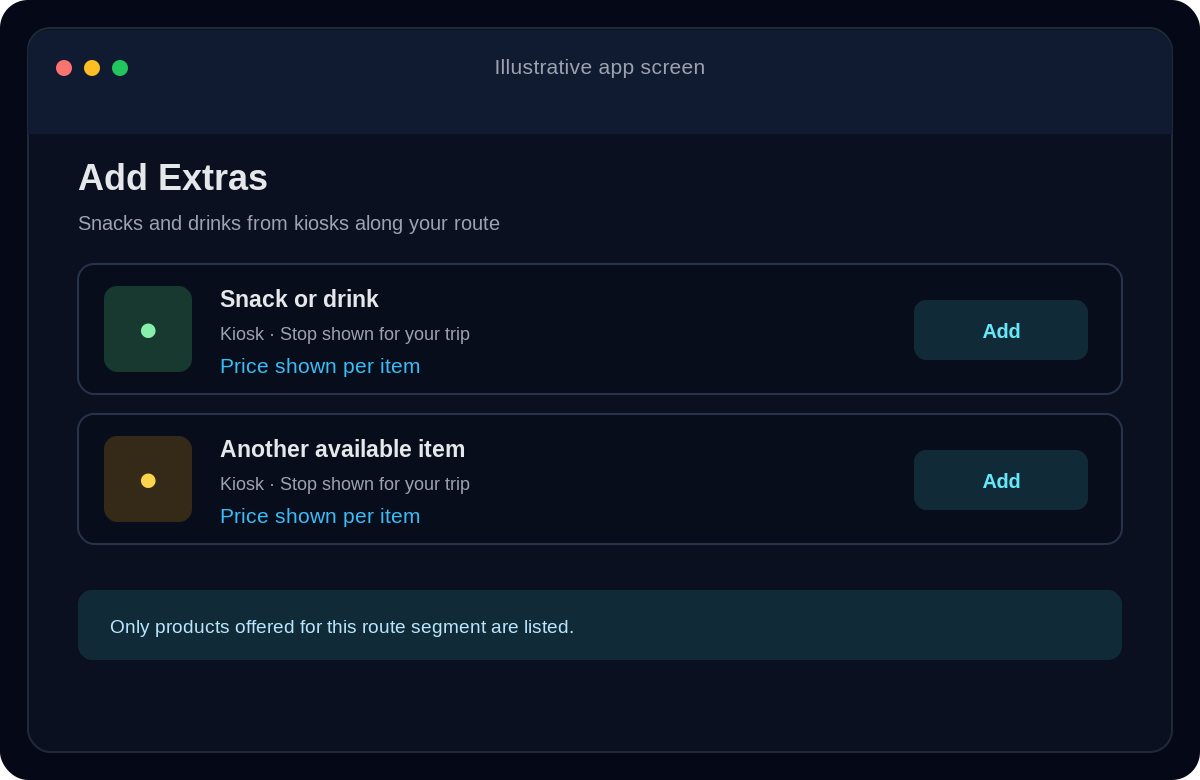
Example extras list. Products appear only when participating kiosks offer them for the selected trip. - Add items and check the total. Select Add for an item and use plus or minus to change its quantity. Checkout adds each item price multiplied by its quantity to the ticket fare total. Review the itemized extras and total before paying. With MoMo, the ticket and extras may be confirmed as separate payment steps; wait for both statuses. If the extras payment fails, the ticket can still be confirmed and checkout may offer a retry.
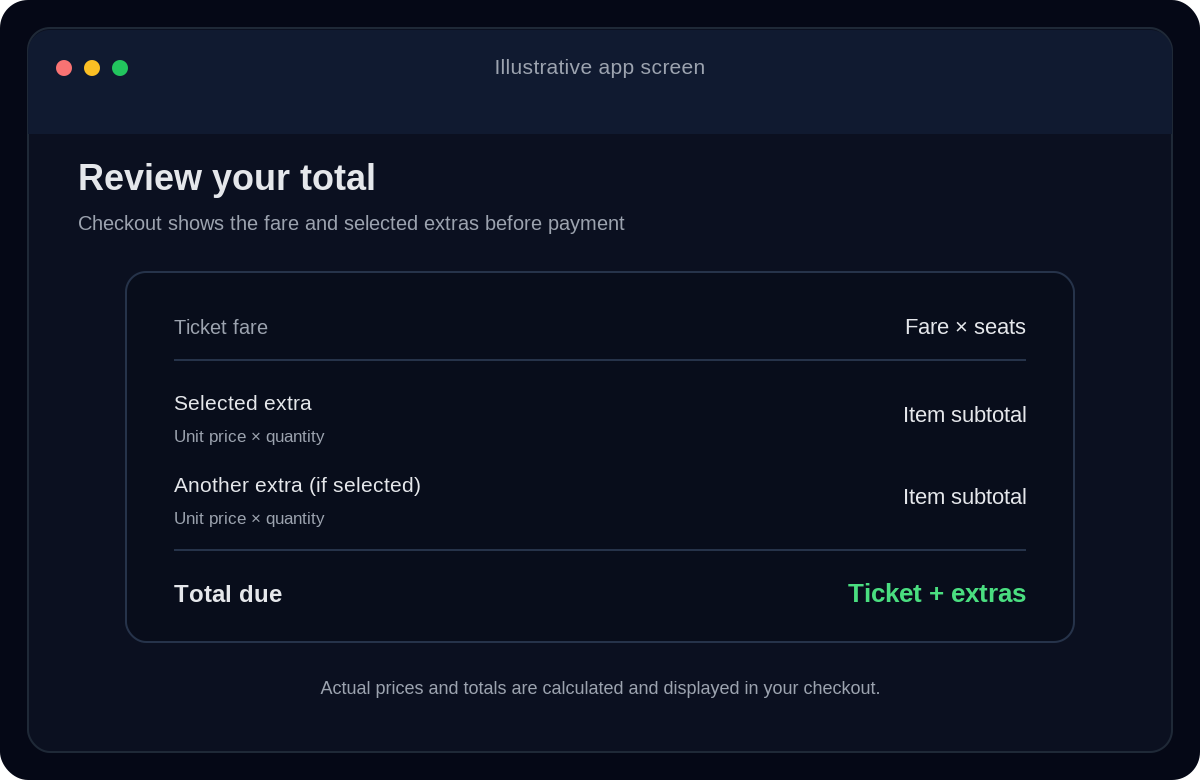
Example price breakdown. The actual item prices and fare are shown in your checkout. - Show your ticket to receive the order. After payment and ticket confirmation, keep your ticket QR code and booking code ready. The kiosk vendor prepares the order for the bus and seat shown in the order. When the bus reaches the participating kiosk stop, the vendor can bring it to your seat where that handover service is offered. Show the ticket QR code or give the booking code so the vendor can verify and mark the order delivered.
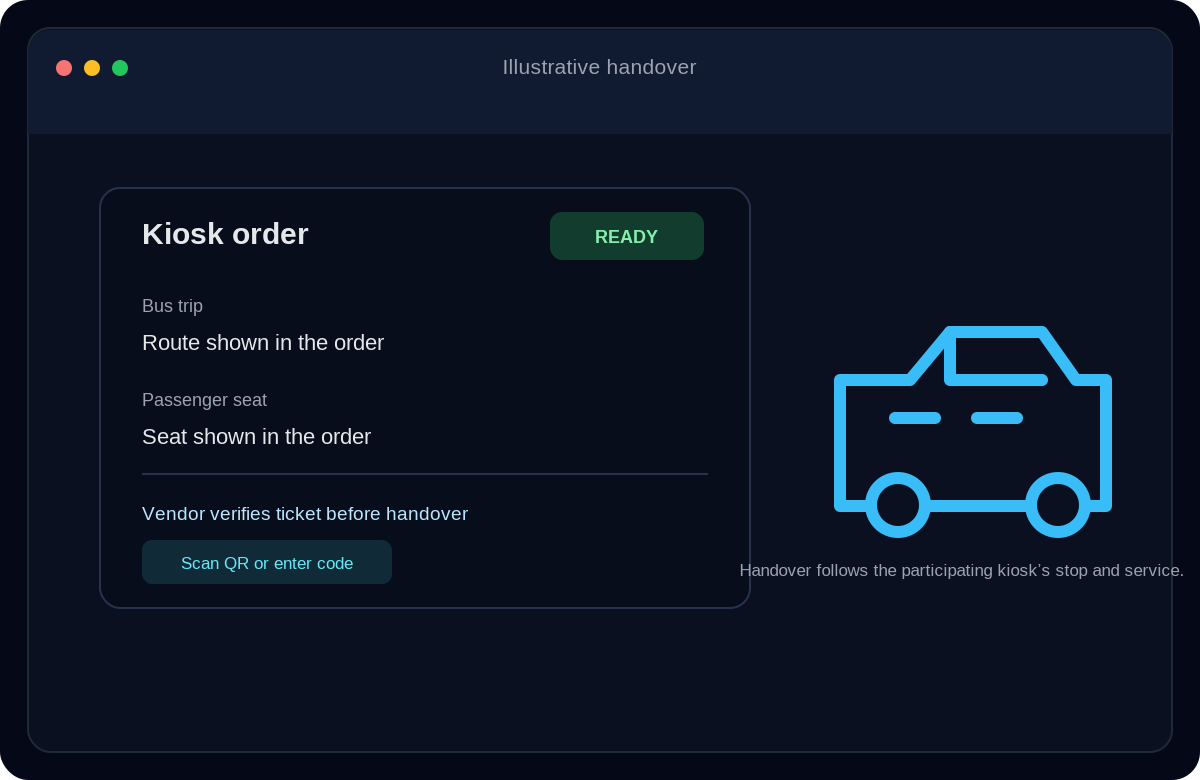
Example vendor handover. The vendor verifies the booking code or scans the ticket QR.
Availability and handover
Extras are shown only when products from a participating kiosk are available for the selected route segment. The current checkout displays the item name, kiosk or stop, and price; availability and prices may change. The extras panel is currently shown for direct trips, not connection bookings.
The vendor order includes the bus trip and passenger seat details. When the bus reaches the participating kiosk stop and the order is ready, the vendor can bring it to your seat where that handover service is offered. Show the vendor the QR code on your ticket or tell them the booking code so they can verify the order before handing it over.
Frequently asked questions
How do I add impamba to a Tembera ticket?
For a direct trip, open Checkout, add products listed in the extras panel, check the itemized total and complete payment.
Are impamba products available on every trip?
No. Products appear only when a participating kiosk offers them for the selected route segment. The extras panel is currently available for direct trips, not connections.
How is the extras price added to my ticket?
Checkout adds each selected product price multiplied by its quantity to the ticket fare and displays the itemized total before payment.
How do I receive my food order?
The vendor sees the bus and seat details for the order. When it is ready, show the vendor your ticket QR code or give them your booking code so they can verify the order for handover.
What if the extras payment fails?
The bus ticket can still be confirmed if its payment succeeded. Check the payment status and use the extras retry option if Tembera shows one.